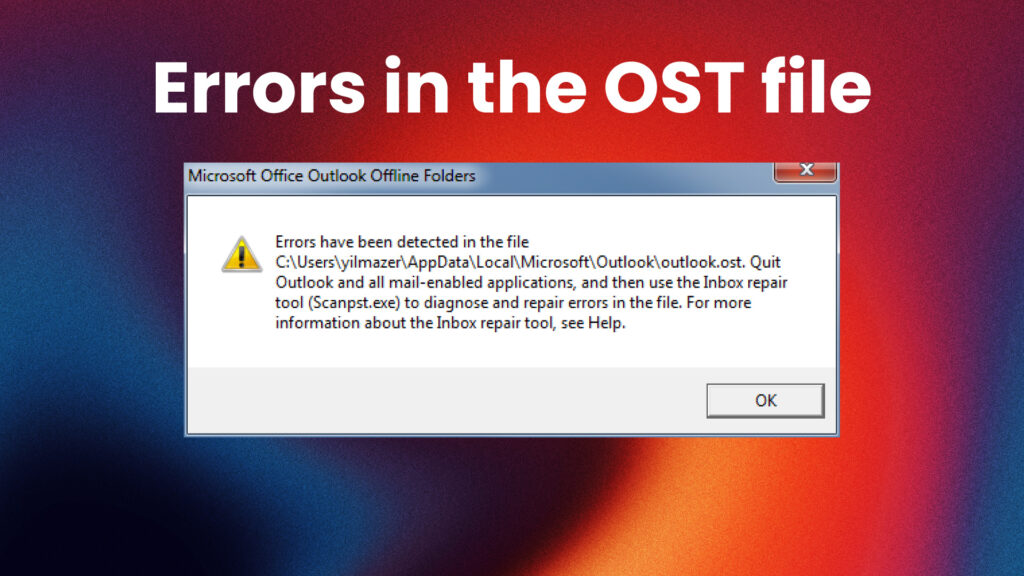
If your Outlook is not syncing properly or showing errors, rebuilding the OST file can often solve the issue. This method works for Outlook 2007, 2010, 2013, and 2016.
In this guide, you will learn how to safely rebuild your OST file step by step.
Video Tutorial
What Is an OST File
An OST file (Offline Storage Table) stores a local copy of your mailbox data when using Exchange accounts. If this file becomes corrupted or outdated, Outlook may stop syncing correctly.
When You Should Rebuild the OST File
You may need to rebuild the OST file if:
- Emails are not syncing
- Outlook is slow or freezing
- You see send/receive errors
- Missing emails or folders
- OST file is corrupted
Step 1: Close Outlook
Make sure Outlook is completely closed before making any changes.
Step 2: Locate the OST File
The OST file is usually located here:
%localappdata%\Microsoft\Outlook
Steps:
- Press Windows + R
- Paste the path above
- Press Enter
Step 3: Rename or Delete the OST File
To rebuild the OST file:
- Find your OST file
- Right-click and rename it (for example: backup.ost)
or delete it - Close the folder
Renaming is safer because you keep a backup.
Step 4: Reopen Outlook
Start Outlook again.
Outlook will automatically create a new OST file and begin syncing your mailbox from the server.
Important Notes
- This method only works if your data exists on the server (Exchange, IMAP)
- If the OST file contains unsynced data, it may be lost
- Always rename instead of deleting if you are unsure
When This Method Does Not Work
If Outlook cannot rebuild the OST file or you need to recover data from it, you may need a recovery tool.
A tool like Stellar Converter for OST can help you:
- Convert OST to PST or EML
- Recover inaccessible emails
- Export data for reuse
Final Notes
Rebuilding the OST file is one of the most effective ways to fix Outlook sync and performance issues. In most cases, this simple process restores Outlook to normal.
Related Content
Watch the full video above for a complete walkthrough.
You can also explore more Outlook and Windows fixes on the channel.