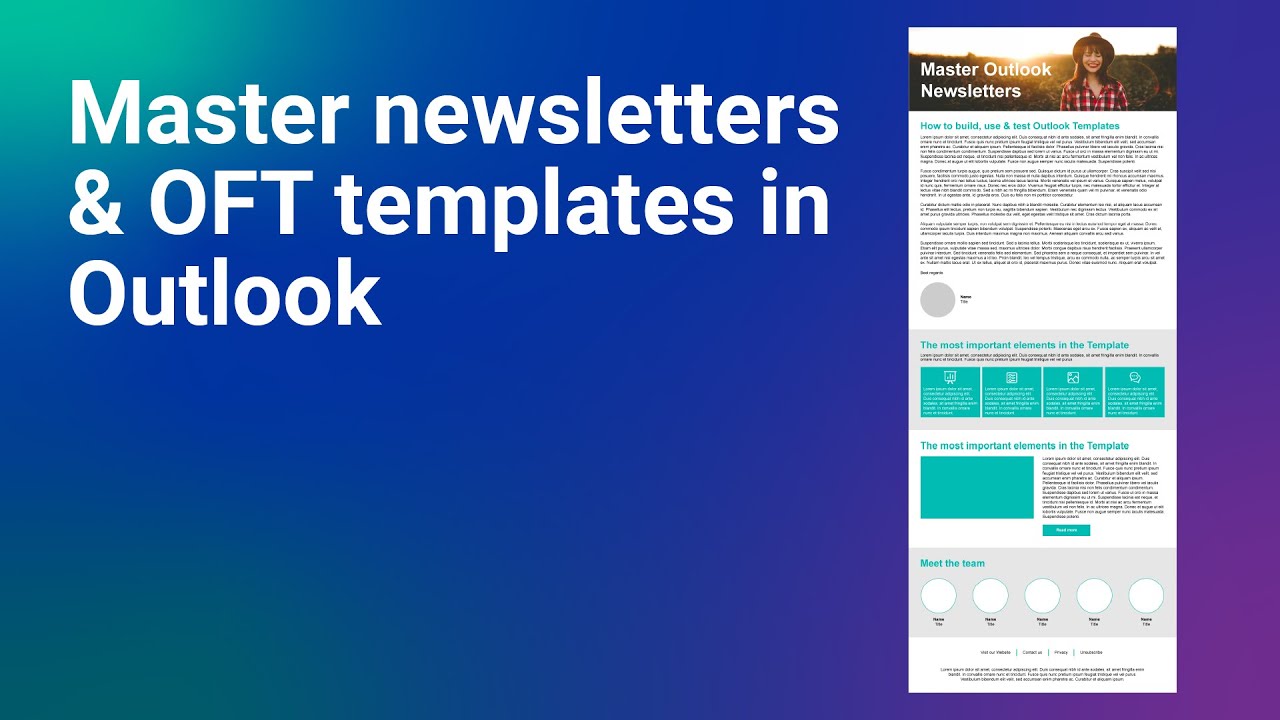
Creating professional email templates in Outlook can save time and improve your communication. In this guide, you will learn how to create, edit, and save newsletters directly in Outlook, along with practical tips to make them look clean and professional.
Video Tutorial
What You Will Learn
In this tutorial, you will learn how to:
- Create structured email layouts using tables
- Design newsletters that work across different devices
- Apply colors, themes, and backgrounds
- Add banners, images, and styled text
- Insert buttons, links, and call-to-actions
- Build reusable templates and save them properly
Key Challenges
Creating newsletters in Outlook is different from standard web design. Some common challenges include:
- Limited support for modern HTML and CSS
- Font inconsistencies across email clients
- Layout issues on different devices
- Image handling and spacing problems
This tutorial shows practical solutions to handle these limitations.
Creating the Template
The process starts with building a solid structure using tables. From there, you can:
- Add sections and rows
- Insert content blocks
- Control spacing and alignment
Tables are essential in Outlook because they ensure consistent rendering across email clients.
Styling and Design
To make your newsletter look professional:
- Use consistent colors and themes
- Add banners and images carefully
- Keep spacing clean and readable
- Use safe fonts that work in Outlook
Adding Buttons and Links
You will also learn how to:
- Create clickable buttons
- Add hyperlinks and smart links
- Improve user interaction
These elements are important for engagement and conversions.
Saving and Reusing Templates
Once your design is complete:
- Save the template as an Outlook template (OFT file)
- Reuse it for future emails
- Maintain consistency across your communication
Testing
Before sending your newsletter:
- Test it on different devices
- Check layout and spacing
- Verify links and images
Testing ensures your email looks correct for all recipients.
Resources
You can download the template and PDF guide from the links provided in the video description.
Final Notes
With the right structure and approach, you can create professional newsletters directly in Outlook. Once you understand the limitations and best practices, building reusable templates becomes fast and efficient.